How to translate a PDF without losing the formatting

Maxim Enis · co-creator of Polytranslator · author of From LLM to NMT (125+ citations)Updated September 16, 2026
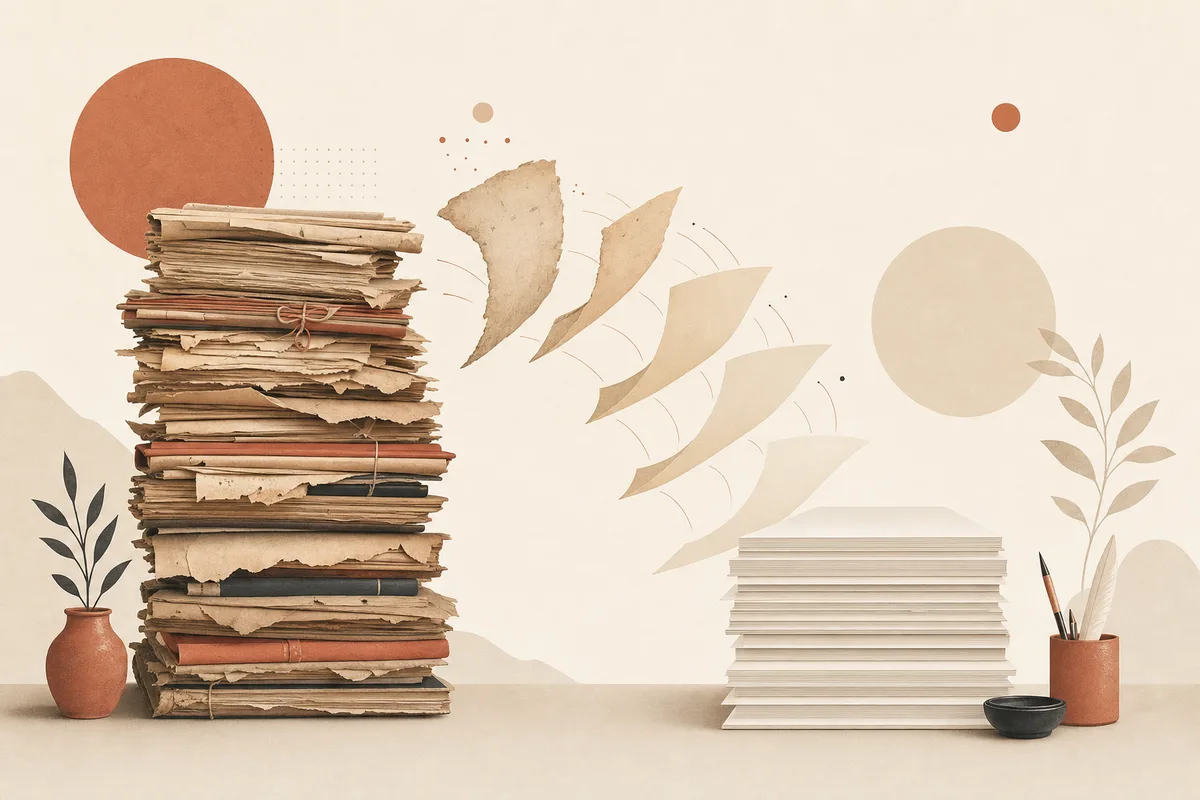
You upload a contract, a lab report or a brochure, and the translation comes back as a wall of text: tables collapsed into lines, columns merged, headers gone, the signature block somewhere on page three. This guide explains why that happens, what a tool has to do differently to keep the page intact, and how to get a translated PDF that still looks like the original.
Why translated PDFs fall apart
A PDF is not a document in the way a Word file is. It has no paragraphs, no tables and no columns; it has characters placed at coordinates on a page. A tool that pulls the text out, translates it and writes it back as a stream has thrown the coordinates away, which is why the columns merge. Two more things work against it. Translated text is rarely the same length as the source: German is about a third longer than English, Chinese much shorter, so text that fitted a box no longer does. And if the PDF is a scan, there is no text to pull out at all until an OCR step has read the page.
The method that keeps the layout
The tools that get this right treat each page as a page. They find every block of text with its position and size, translate the blocks with the whole document as context so terminology stays consistent across pages, then put each translation back where the original block was, in a matching size and colour. When a translation is longer than the space it replaces, the text is fitted within a readable range, then allowed into clear space beside the block, and only then allowed to spill. Nothing is shortened or paraphrased to make it fit. This is what Polytranslator's “Keep formatting” output does for PDFs and images. Translated PDF pages are rendered as images; they do not provide editable table cells or guaranteed selectable text. Word, PowerPoint, Excel and EPUB files retain their native structure, with translated text written back into the file. Longer translations can still change line breaks or overflow, so review the downloaded result.
If the PDF was exported from a Word or PowerPoint file and you still have that file, use the Word document translator or PowerPoint translator on the original. Native paragraphs, text boxes and table text can stay editable. DeepL also recommends trying the original source document when PDF output is unsatisfactory.
If the PDF contains pictures of paper pages, the scanned PDF translator accepts that file directly. A clear scan helps the system read small text and table entries before translating them.
Step by step
- Open the PDF translator and upload the file, or a photo of it. PDF, DOCX, PPTX, XLSX, EPUB and images are accepted, up to 20 MB on the free tier.
- Pick the target language. The document's own language is detected from the file.
- Review the credit quote. The PDF translator produces a translated file with the layout preserved, and shows its credit cost before you start.
- Translate. Short files return in the browser; long ones run in the background and you can leave an email to be notified.
- Compare. The result opens with the original on the left and the translation on the right, page by page, which is where you catch a shifted table or a substituted font before anyone else does.
- Download the translated file. It stays available online for 30 days.
What it looks like
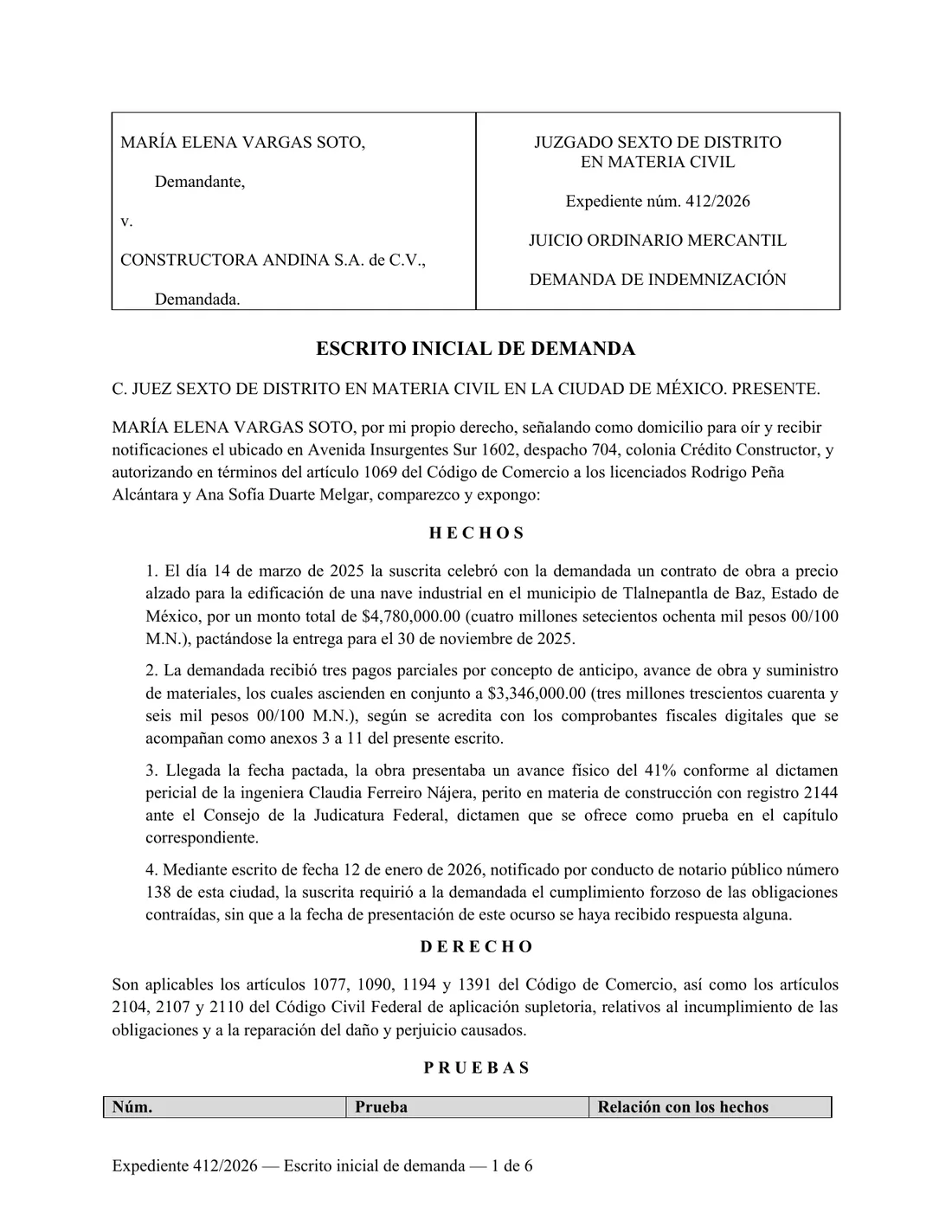
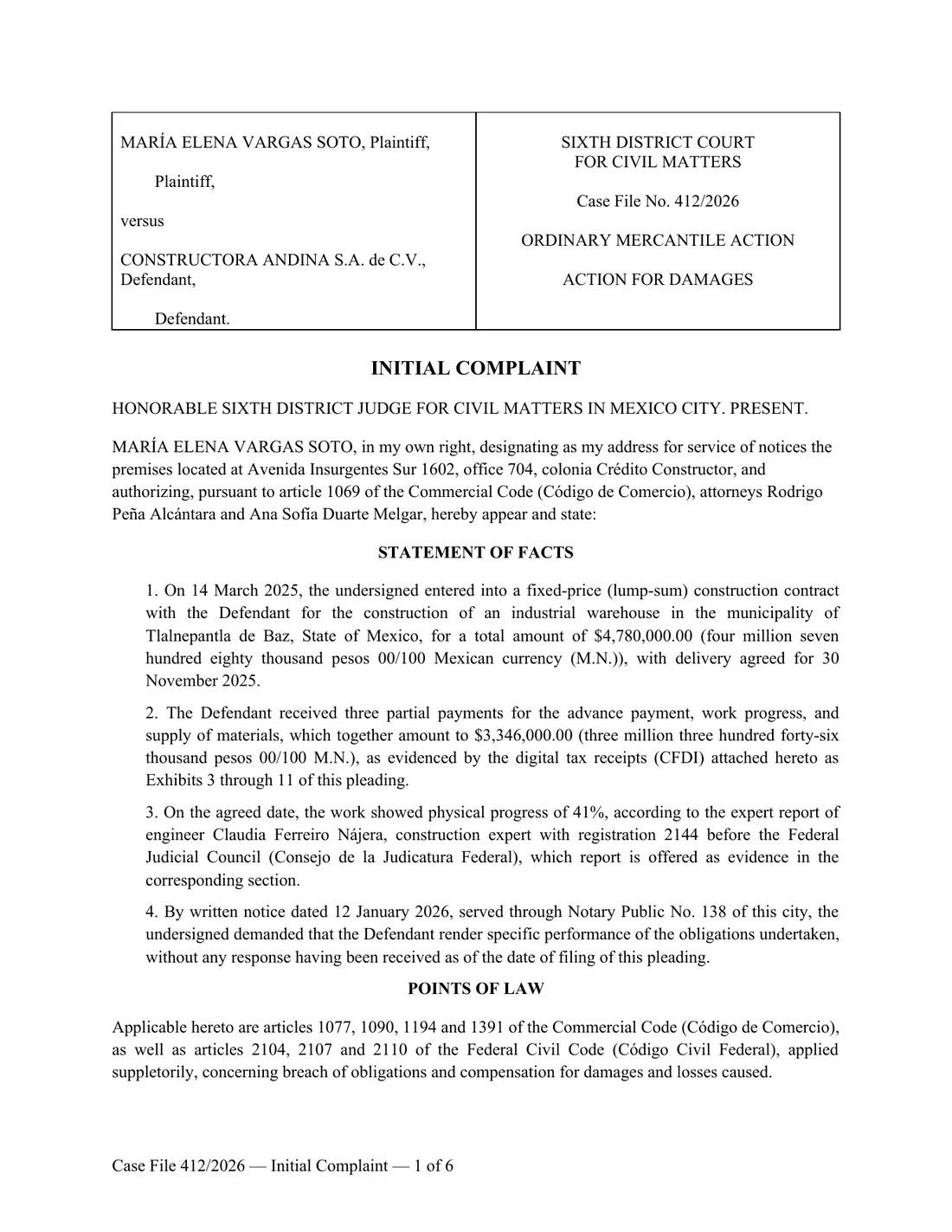
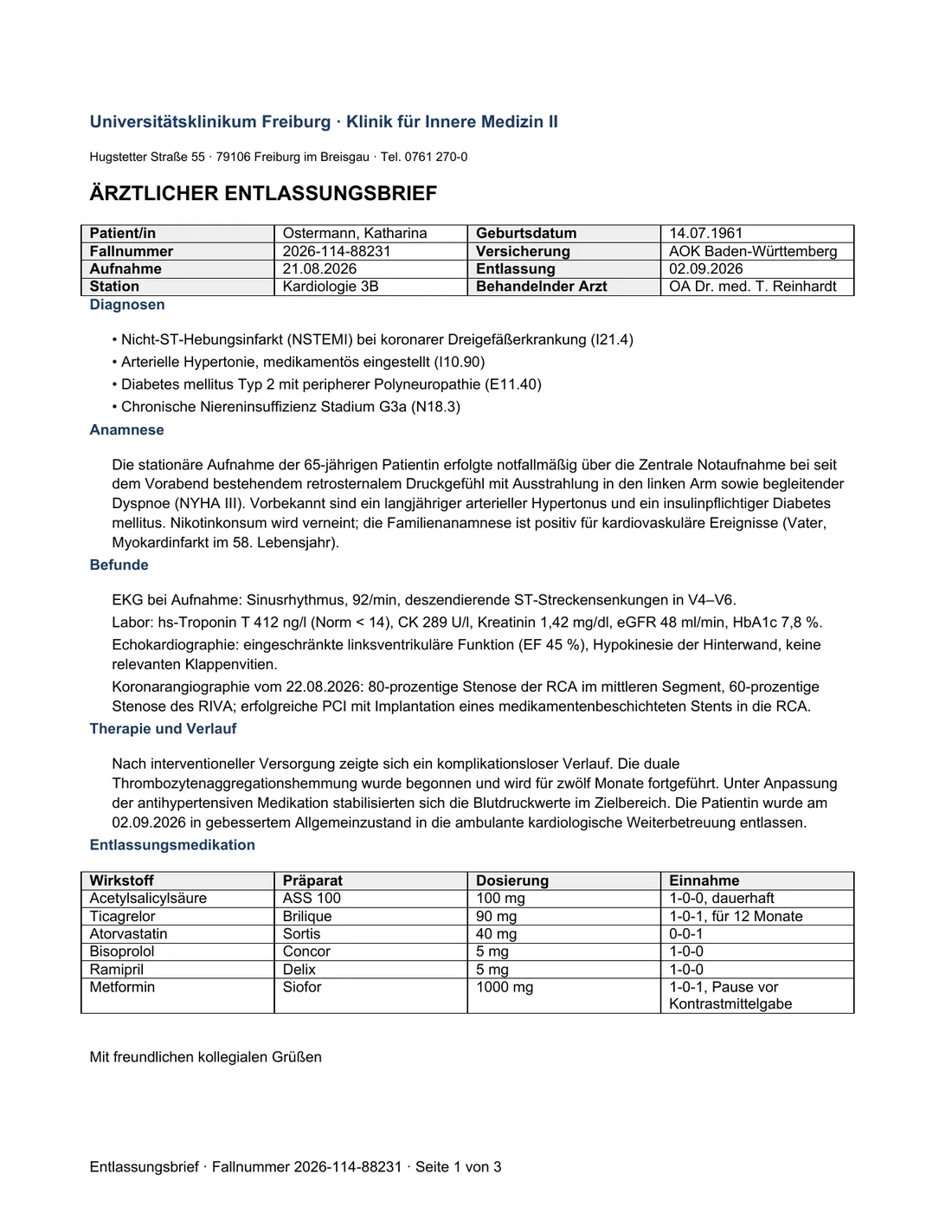
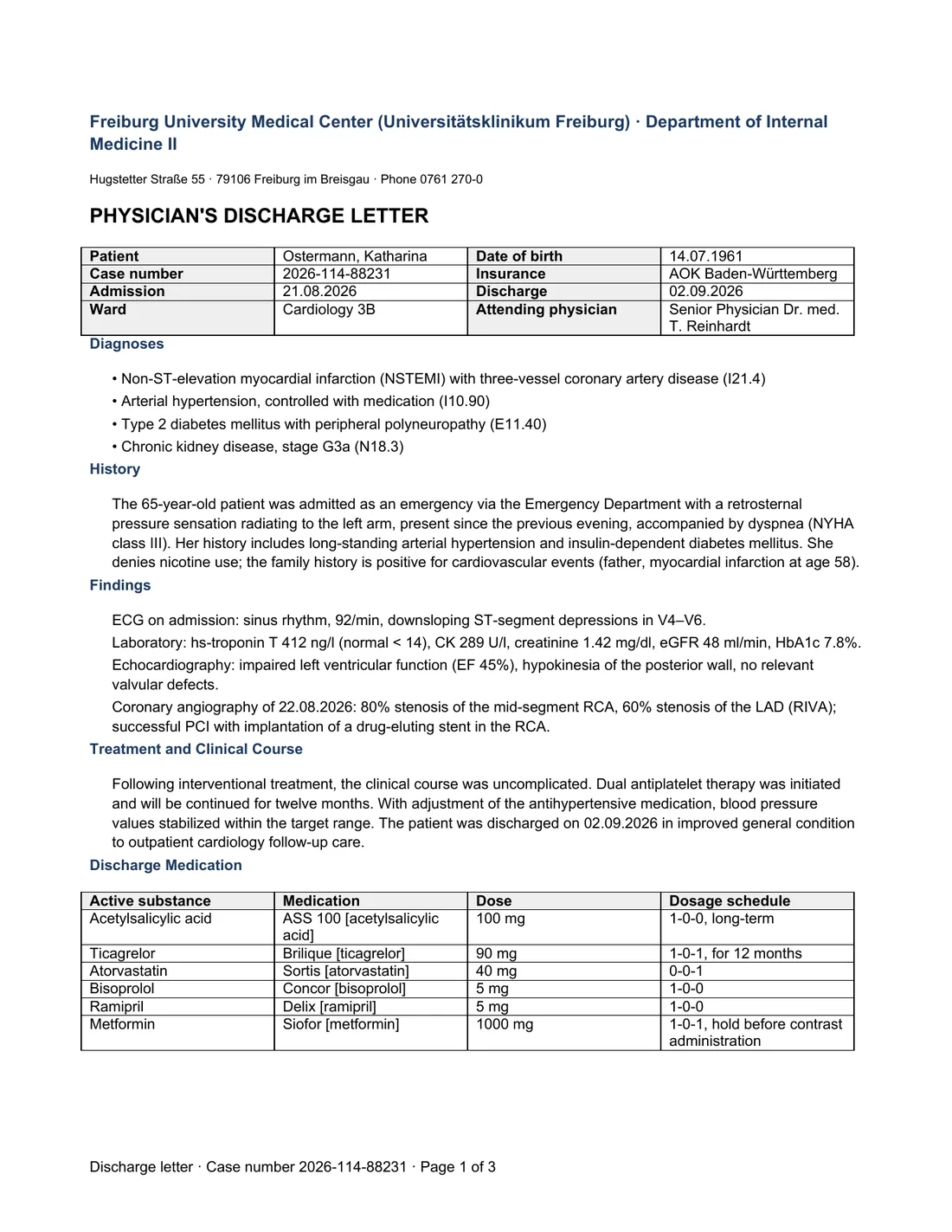
What to check afterwards
- Tables: every row still has the same number of cells, and totals still match their parts.
- Numbers, dates and identifiers: compare each one against the original. Translation engines can misread a digit on a scan; a layout that looks perfect does not prove the content is.
- Headers, footers and page numbers: present on every page, not just the first.
- Long paragraphs: languages expand and shrink. German runs about a third longer than English, so watch the last line of dense blocks.
- Fonts: if the original used a font that was not embedded, the translation uses the closest match. Fine for reading; check before printing letterhead.
When text-only is the better choice
If you only need to know what a document says, open the general translator's Documents tab and choose Text only for a reading copy you can search, copy and paste. That tool shows the cost of each output. Layout matters when the document will be shared, filed, printed or compared against the original line by line: contracts, certificates, medical reports, manuals, anything with a table. The dedicated PDF translator always produces the formatted file.
How this compares with other tools
Google Translate's document upload keeps simple layouts but, in its own words, text in images and scanned PDF pages “aren't translated”. DeepL advertises formatting preservation for Office files and PDFs, including scanned PDFs. Its PDF support guidance warns that scan quality, custom fonts and large images can affect translation quality. Compare a representative page from your document before choosing a tool for the whole file.
Translate a PDF and keep the layout
Upload a page and get a translated PDF with the layout preserved. Compare the result with the original. The cost is shown before you translate.
Open the PDF translatorQuestions
- Does this work on scanned PDFs?
- Yes. Scanned pages and photographs are read with OCR first, then translated in place, so the result still looks like the original page. Faint photocopies and handwriting are the hardest inputs; see the guide on scans and photos for what to expect.
- Which file types keep their formatting?
- PDF, Word (DOCX), PowerPoint (PPTX), Excel (XLSX), EPUB, and images (PNG, JPG, WebP, HEIC). Office files and EPUB retain their native structure. Translated PDF pages are rendered as images, so selectable PDF text is not guaranteed. Review text fit and layout in the result.
- Is it free?
- Free daily credits are available without an account, and the credit cost is shown before you translate. Upload limits are 20 MB on Free and 50 MB on Pro and Scholar. Free and Pro allow 100,000 extracted characters; Scholar allows 1,000,000. A file within those limits may still need more credits than your free balance.
- What languages are supported?
- 475, including ancient, historical, indigenous and constructed languages and dialects translated as themselves. The layout-preserving output needs a font that covers the target script; where none exists it is refused rather than drawn as boxes.
- Is a layout-preserved translation a certified translation?
- No. Courts and immigration authorities require a human certification statement. A machine translation that keeps the layout is the right starting point for one, not a substitute.