How to translate a scanned document or a photo of a page and keep the layout

Maxim Enis · co-creator of Polytranslator · author of From LLM to NMT (125+ citations)Updated September 16, 2026

Most documents people need translated do not exist as files. They are a birth certificate in a drawer, a parish register on a microfilm reader, a letter, a poster, a page of a manual, a notice on a wall, photographed on a phone. This guide covers how to turn that photo into a translated page that still looks like the original, how to take the photo so it reads well, and what to check before you rely on the result.
What a translator has to do with a photo
A photo has no text in it, only pixels, so the first step is reading: optical character recognition finds each block of text, its position, its size and its reading order. The second step is translating those blocks with the whole page as context, so a column header and the entries under it agree. The third step is rebuilding the page: replacing the original text and typesetting the translation back into the same place, in a matching size and colour, so a certificate comes back as a certificate and a poster as a poster. Where a translation is longer than the space it replaces it is fitted within a readable range, then allowed into clear paper beside the block, and only then allowed to spill. Nothing is shortened to make it fit. Google Translate's document upload states that text in images and scanned pages “aren't translated”. DeepL also supports scanned PDFs; its PDF support guidance notes that scan quality, custom fonts and large images can affect the result. Polytranslator's formatted PDF output renders translated pages as images; it does not turn a scan into editable Word text or guarantee selectable PDF text.
Taking a photo that reads well
- Lay the page flat and shoot straight down. A page photographed at an angle is read, but text on the far edge is smaller and blurrier than text near you.
- Fill the frame with the page and leave a small margin. Cropped edges lose the marginal notes that registers and certificates keep there.
- Use daylight or an even lamp, and avoid the flash. A bright glare spot on glossy paper is unreadable to OCR just as it is to you.
- Hold still or rest the phone on something. Motion blur costs more accuracy than low resolution does.
- One page per photo. Two facing pages in one frame are read as one wide page and the columns interleave.
- HEIC straight from an iPhone is fine; so are JPG, PNG and WebP. Up to 20 MB on the free tier.
Step by step
- Open the scanned PDF translator and upload the photo or the scanned PDF. Multi-page scans go in as one PDF.
- Pick the target language. The page's own language is detected from a sample of it.
- Review the credit quote for the translated file. This tool preserves the page layout automatically.
- Translate, then compare the result with the original side by side. On a certificate, read the names and dates first.
- Download the translated image or PDF. It stays available online for 30 days.
What it looks like
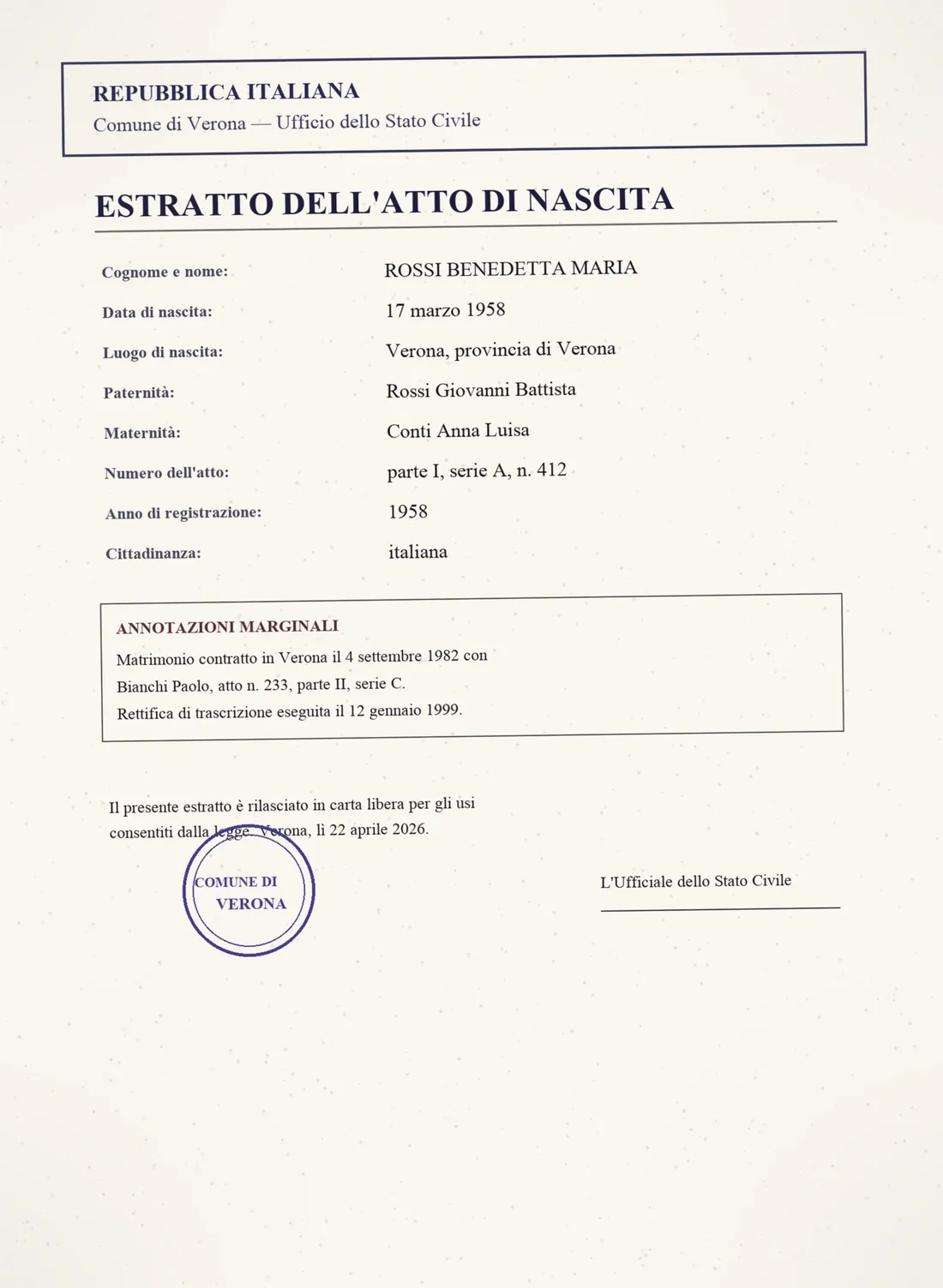
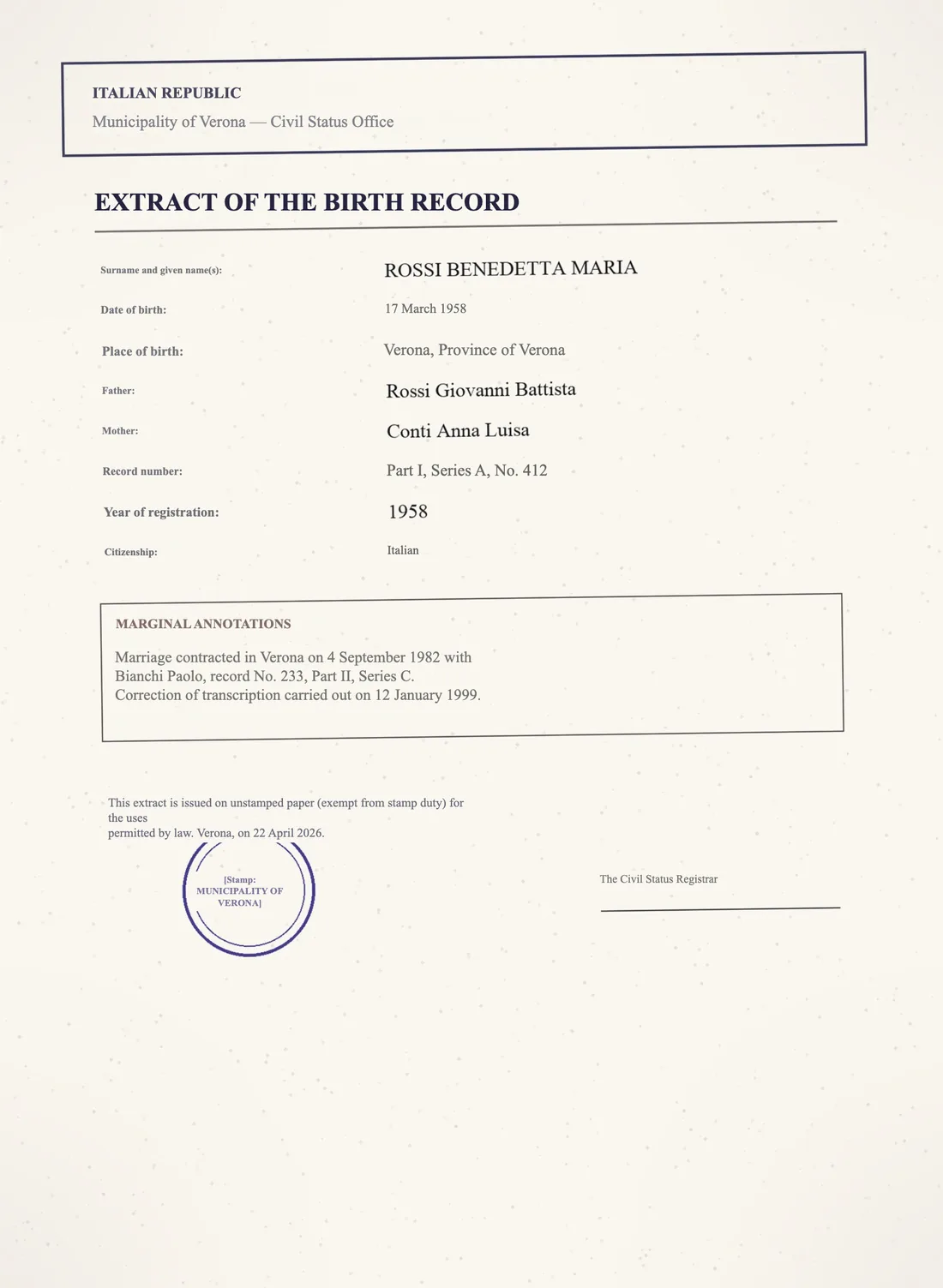
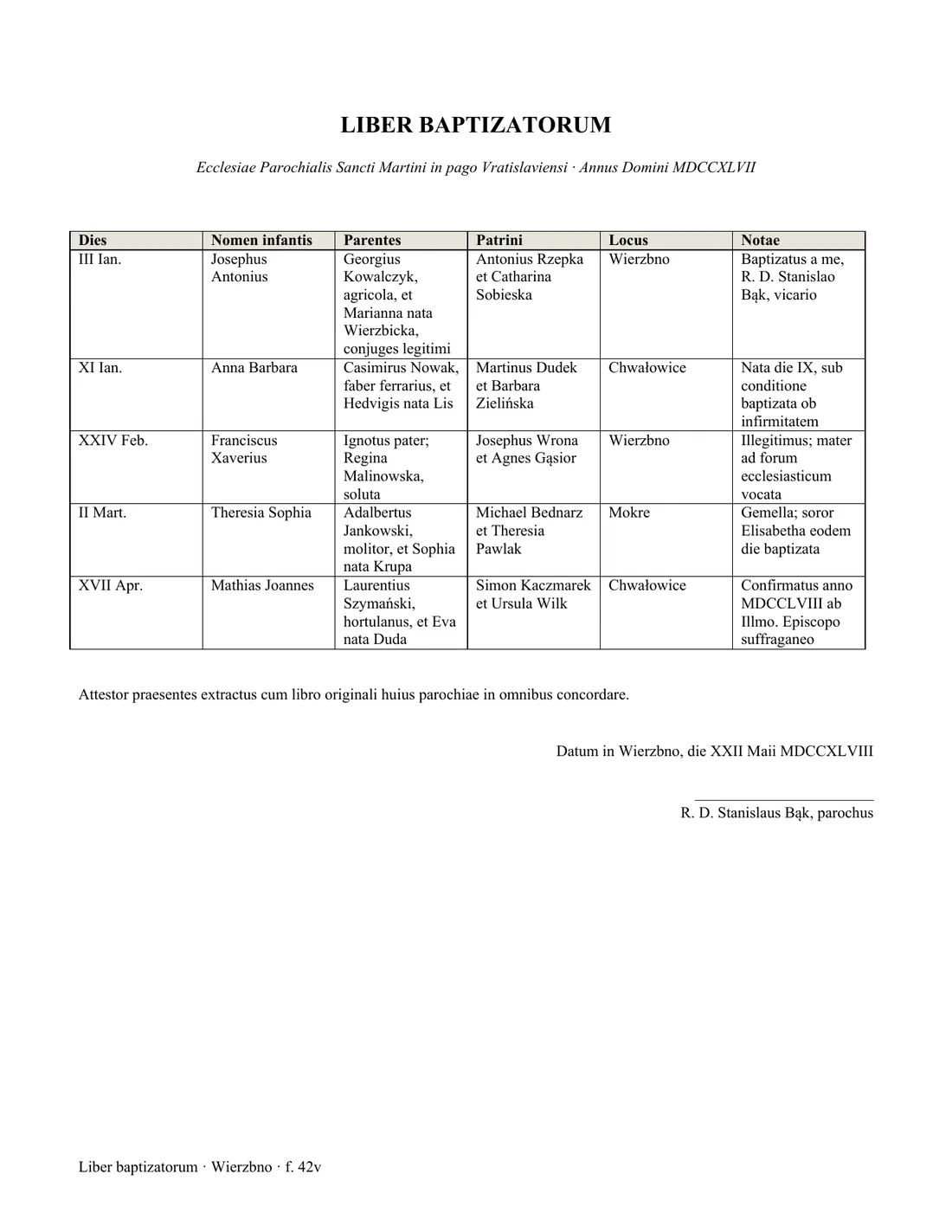
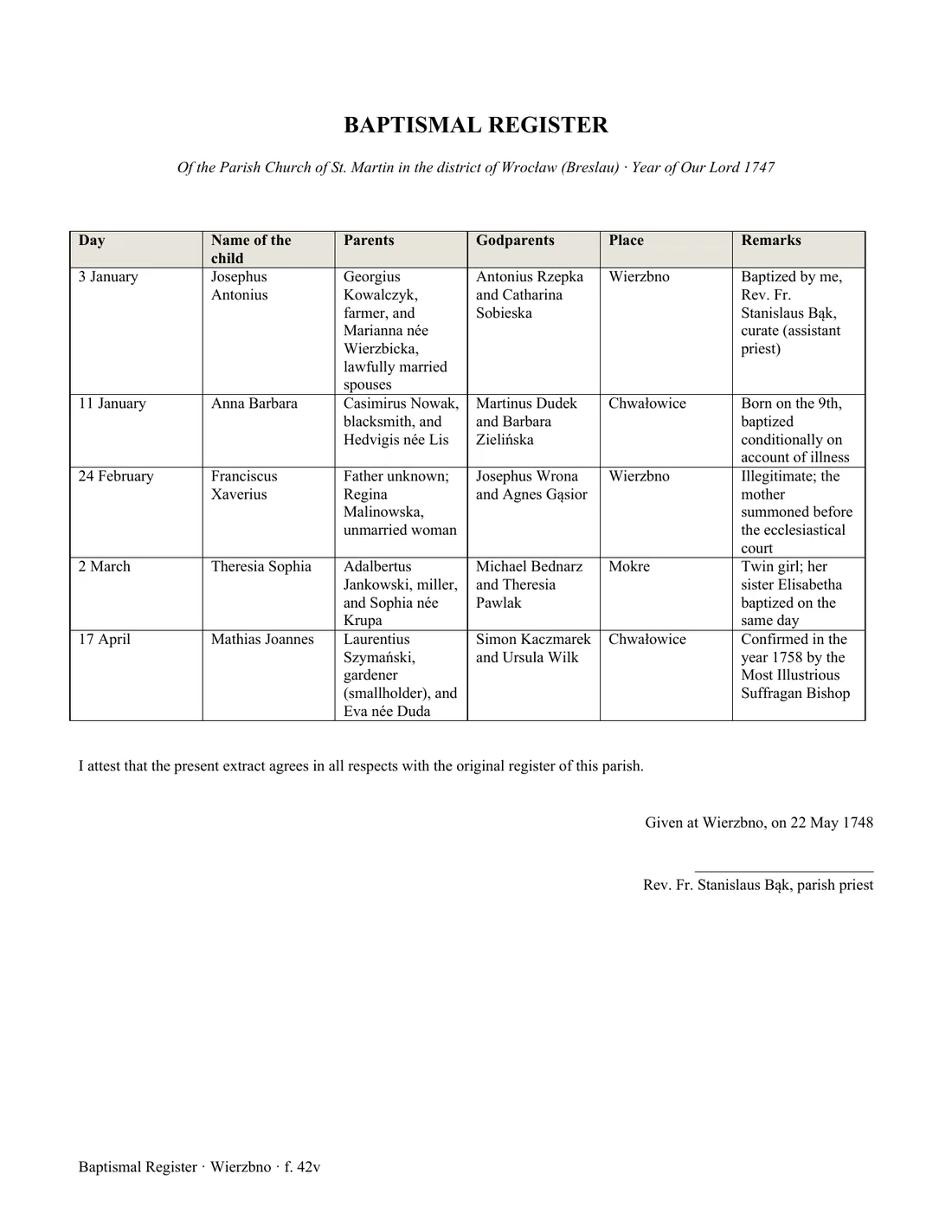
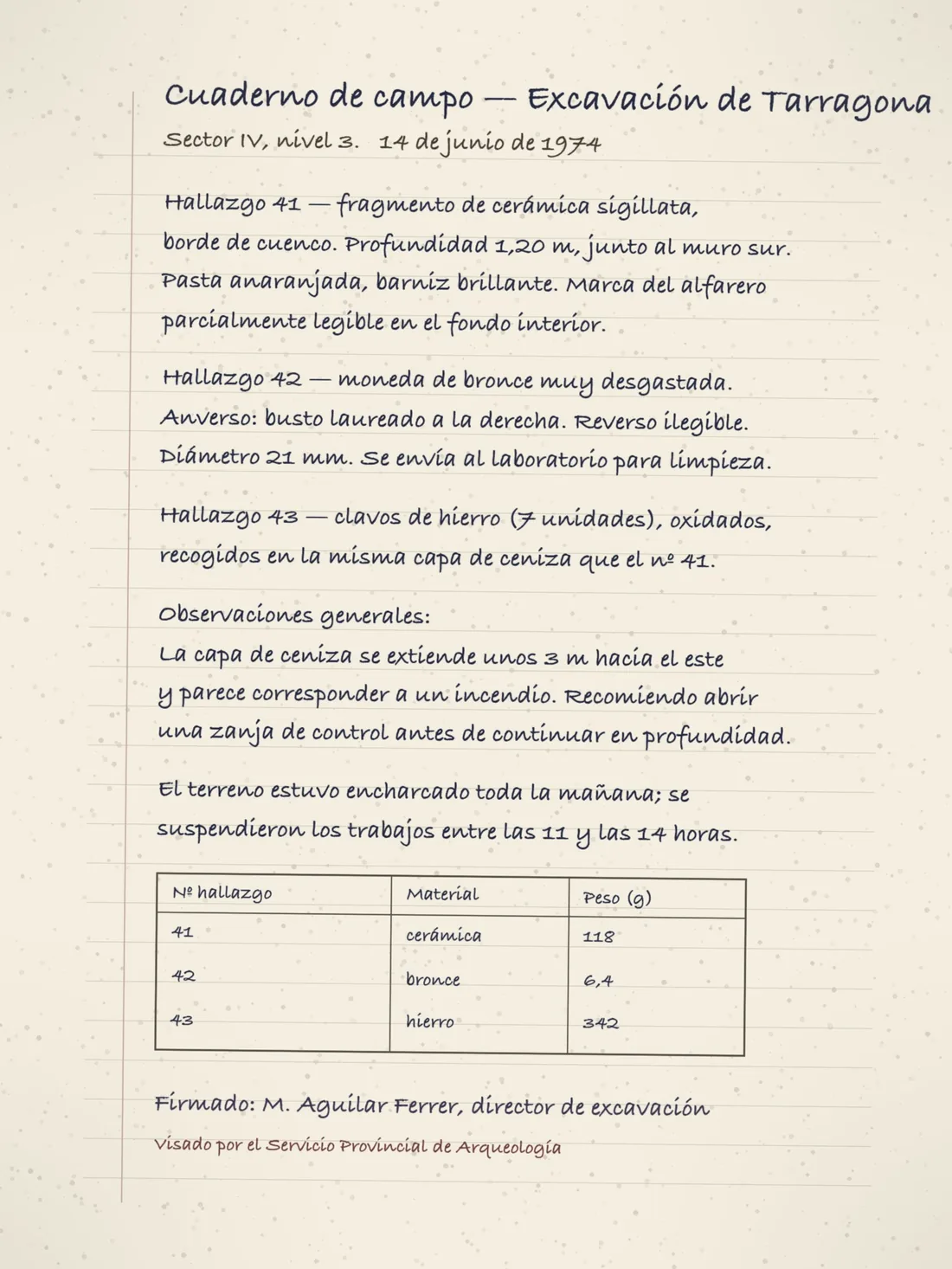
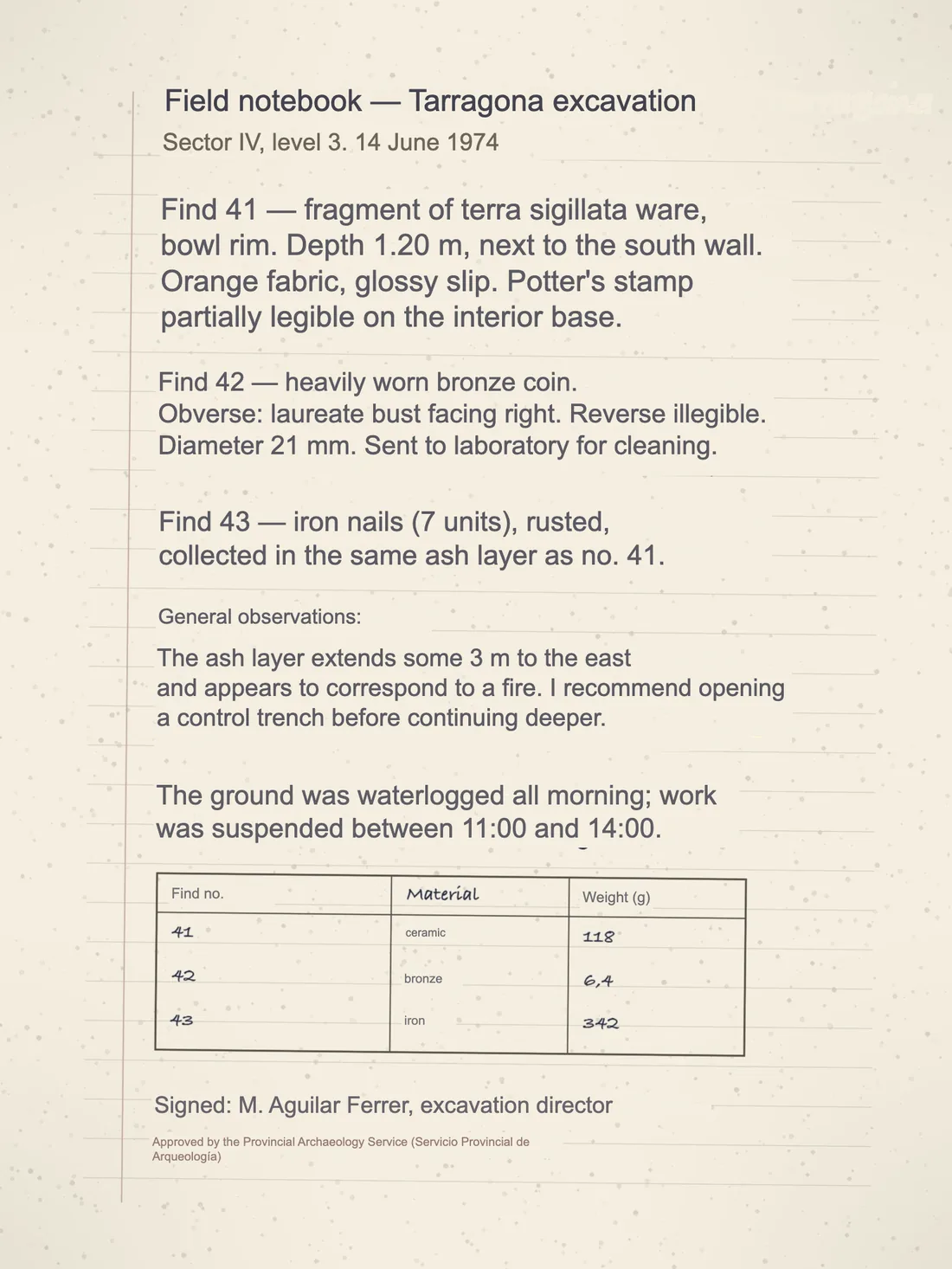
What to check before you use it
- Names and places: OCR on old scripts confuses similar letters, and the translation cannot know that a surname is not a word. Read every proper name against the original.
- Dates and numbers: a 3 read as an 8 on a faint scan will be translated faithfully as an 8. This is the one check never to skip on a certificate.
- Stamps, seals and signatures: they are kept as they are, not translated. If the text inside a stamp matters, translate it separately from the text output.
- Handwriting: what the engine could not read is left as it was rather than invented. Blank spots in the translation mean it declined to guess.
- Certification: authorities require a human certification statement. A layout-preserved machine translation is the right draft to hand a certified translator, not a replacement for one.
For scanned lab results or discharge paperwork, see the medical report translator for guidance on checking values, units and row labels against the original. Have a qualified professional review the translation before relying on it for care.
Old records, old hands
Genealogists bring the hardest pages: Kurrent and Fraktur registers, Latin baptisms, faded carbon copies. Printed and neatly written pages read well. Loose handwriting reads partly, and the parts that could not be read are left as they were rather than guessed. If you need a transcription and translation you can copy, the general translator's Documents tab offers a Text only option. The guide to old family letters and records covers what to do with the rest.
Translate a scanned page
Upload a photo or a scan and get a translated file with the layout preserved. The cost is shown before you translate.
Open the scanned PDF translatorQuestions
- What is the difference between a scan and a digital PDF?
- A digital PDF contains text; a scan or a photo contains only pixels. Scans are read with OCR first, which is where most of the difficulty lives: resolution, lighting, old typefaces and handwriting all decide how much text is found. Once read, the page is translated and rebuilt the same way.
- Which scripts and languages work?
- 475 languages, including Devanagari, Arabic, Cyrillic, Chinese and Japanese pages, Latin-script records in older typefaces, and historical languages such as Latin and Old English. Layout-preserving output needs a font that covers the target script and is refused, rather than drawn as boxes, where none exists.
- Is a photographed page as good as a scanner?
- A flat, well-lit phone photo of a printed page reads about as well as a 300 dpi scan. A scanner still wins on very small print, faint carbon copies and pages that will not lie flat.
- What does it cost?
- Free daily credits are available without an account. The scanned PDF translator shows the credit cost of the formatted translation before you start. Larger documents may need more credits than your free balance.
- Can I get just the text?
- The scanned PDF translator produces a translated file with the layout preserved. For a reading copy you can search and copy, use the general translator's Documents tab and select Text only there.